How to Adjust Print Margins for Perfect Printing
Understanding Print Margins
When it comes to printing documents, one of the most important aspects to consider is the print margins. Print margins refer to the blank space between the edge of the paper and the text or images on the page. Adjusting print margins is crucial to ensure that your documents print correctly and look professional. In this article, we will explore the importance of print margins and how to adjust them for perfect printing.
Adjusting print margins can make a significant difference in the appearance of your printed documents. By default, most printers and software applications have set margins that may not be suitable for all types of documents. For example, if you are printing a report or a thesis, you may want to adjust the margins to leave more space for binding or to fit more text on the page. On the other hand, if you are printing a photo or a graphic, you may want to adjust the margins to remove unnecessary blank space and make the image larger.
Adjusting Print Margins in Different Software
To adjust print margins, you need to understand the different types of margins and how they affect your printed documents. There are four types of margins: top, bottom, left, and right. The top margin is the space between the top edge of the paper and the first line of text, while the bottom margin is the space between the last line of text and the bottom edge of the paper. The left and right margins are the spaces between the left and right edges of the paper and the text or images. By adjusting these margins, you can customize the layout of your printed documents to suit your needs.
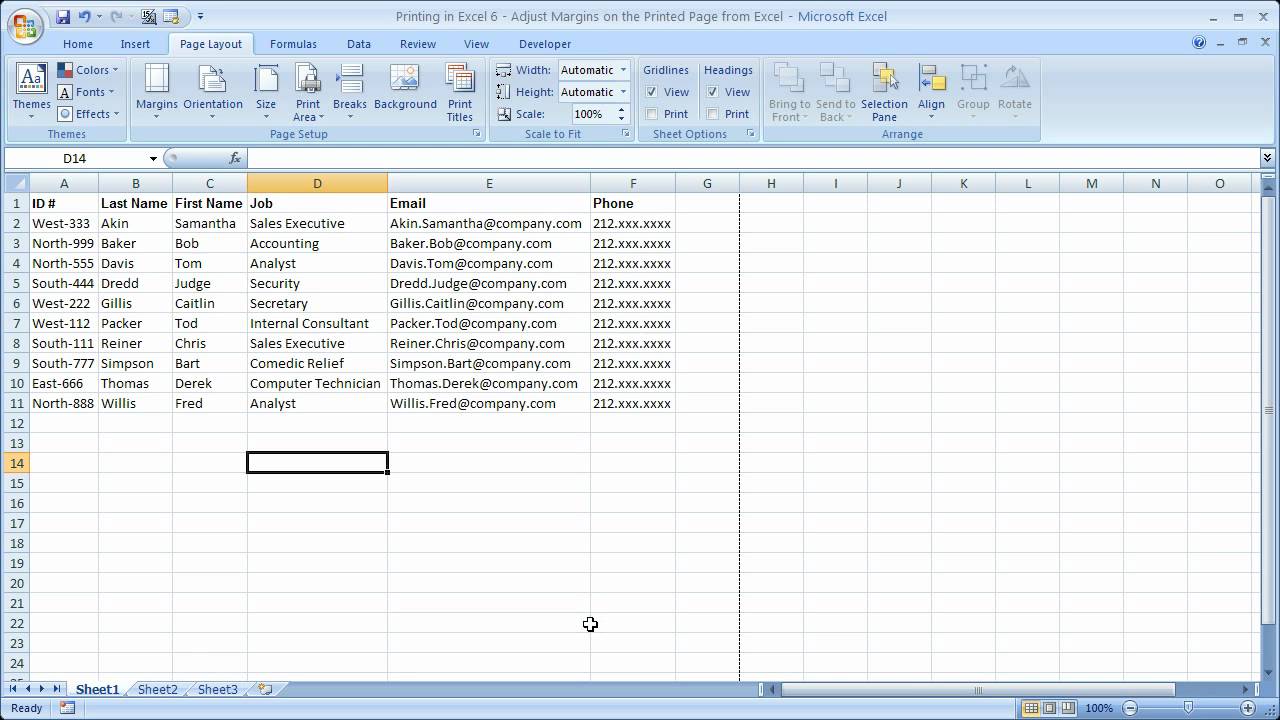
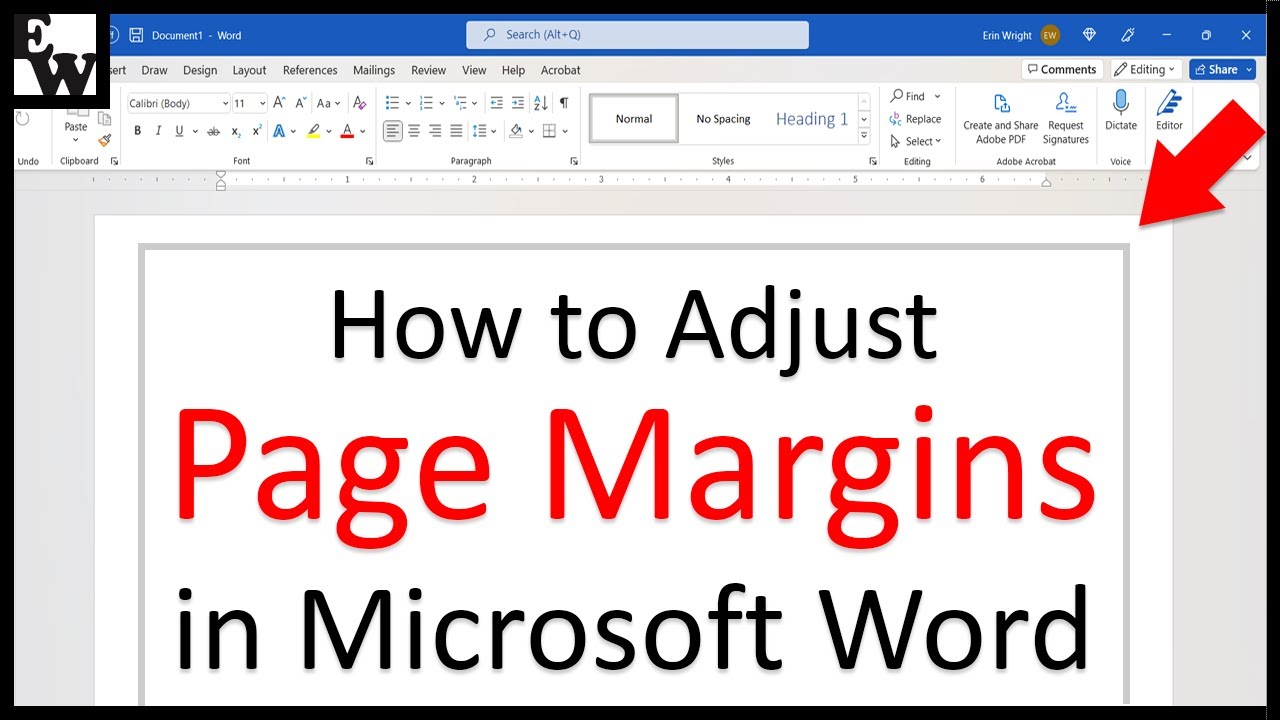
Adjusting print margins can be done in different software applications, including Microsoft Word, Google Docs, and Adobe Acrobat. The process of adjusting print margins may vary depending on the software you are using. For example, in Microsoft Word, you can adjust the margins by going to the Layout tab and clicking on the Margins button. In Google Docs, you can adjust the margins by going to the File menu and selecting Page setup. By adjusting the print margins, you can ensure that your documents print correctly and look professional.