How to Embed Excel Spreadsheet in Word Doc
Embedding an Excel Spreadsheet in Word
Embedding an Excel spreadsheet in a Word document can be a great way to add interactive and dynamic content to your reports, proposals, and other documents. With this feature, you can easily share data and insights with others, and make your documents more engaging and informative. In this article, we will show you how to embed an Excel spreadsheet in a Word document, and provide you with some tips and tricks to get the most out of this feature.
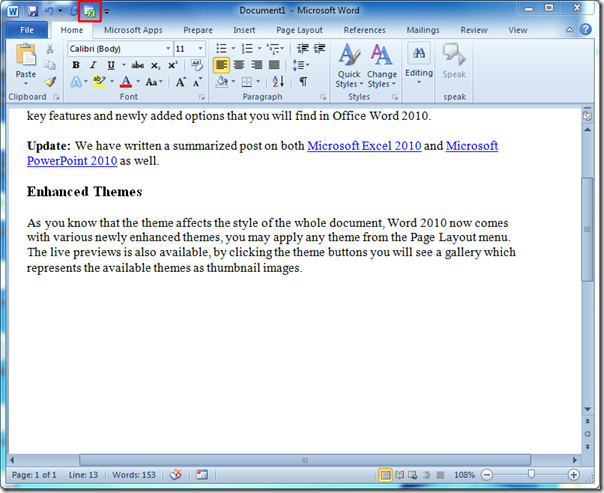
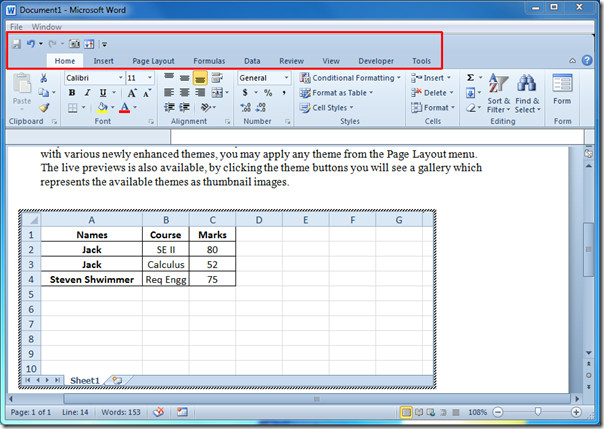
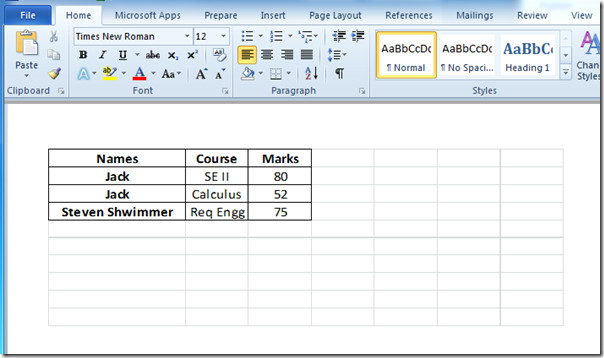
To embed an Excel spreadsheet in Word, you will need to have both Excel and Word installed on your computer. You can start by opening your Word document and clicking on the 'Insert' tab in the ribbon. From there, click on 'Object' and select 'Excel Spreadsheet' from the list of available objects. This will create a new Excel spreadsheet within your Word document, which you can then edit and customize as needed.
Editing and Updating the Embedded Spreadsheet
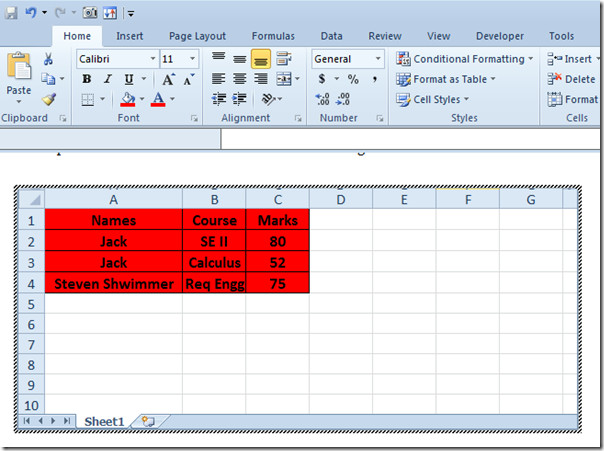
Once you have created your Excel spreadsheet within Word, you can edit and update it just like you would with a regular Excel spreadsheet. You can add formulas, charts, and other features to make your data more meaningful and engaging. You can also use the 'Link' feature to link your Excel spreadsheet to an external data source, such as a database or another Excel file. This allows you to update your data in real-time, and ensures that your Word document always reflects the latest information.
In conclusion, embedding an Excel spreadsheet in a Word document is a great way to add interactive and dynamic content to your reports and proposals. With the ability to edit and update the spreadsheet in real-time, you can ensure that your data is always up-to-date and accurate. By following the steps outlined in this article, you can easily embed an Excel spreadsheet in a Word document, and take your documents to the next level.