Create Beautiful Table Place Cards in Microsoft Word


Designing Your Place Cards
Creating table place cards in Microsoft Word is a simple and effective way to add a personal touch to your events. Whether you're hosting a wedding, party, or corporate event, custom place cards can help create a warm and welcoming atmosphere. To get started, open a new document in Microsoft Word and set the page layout to 'Landscape' or 'Portrait' depending on your preference.
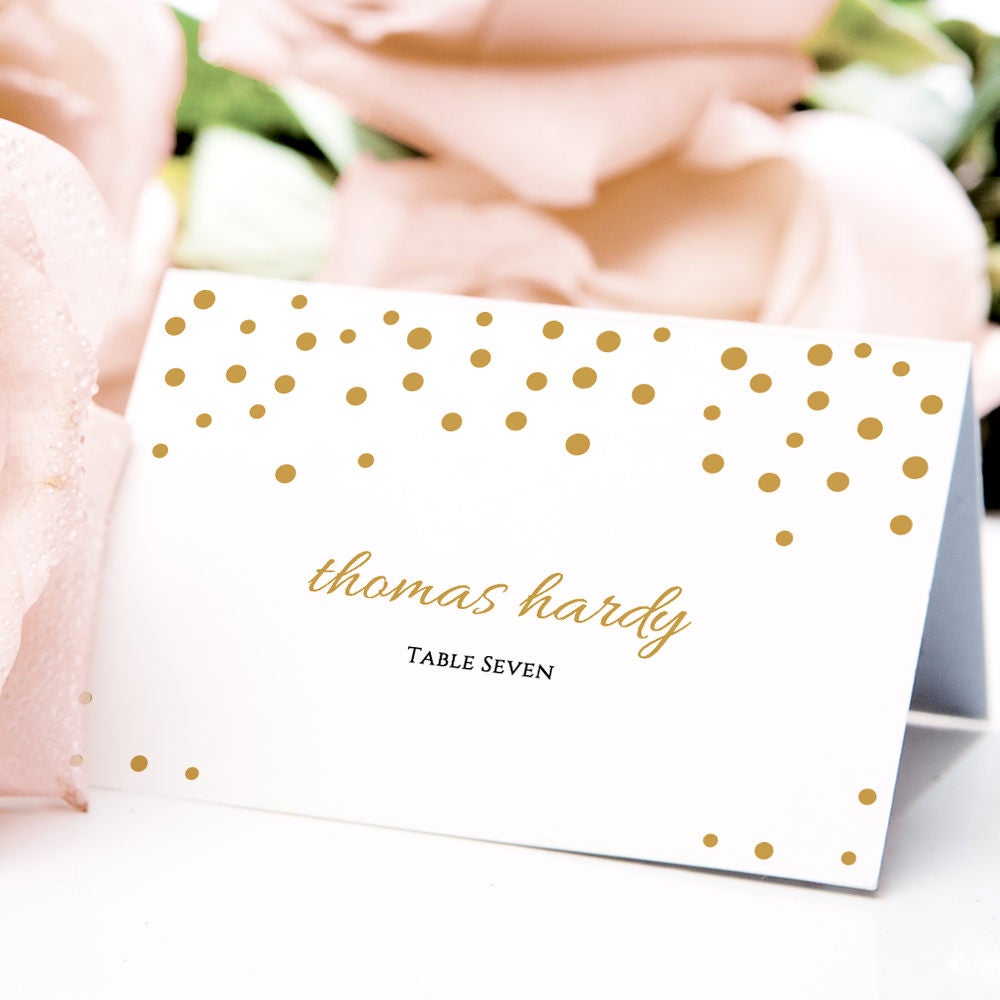
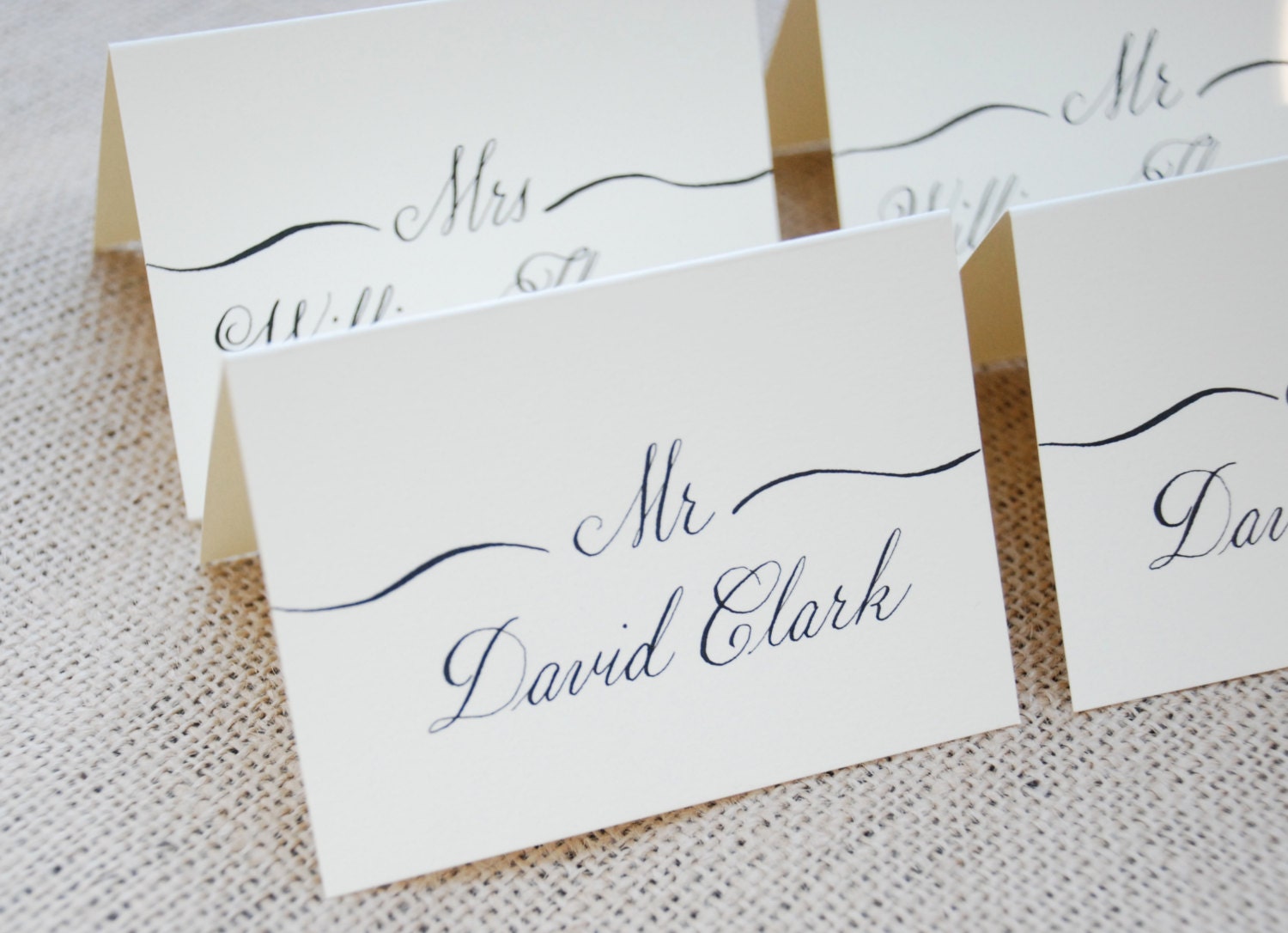
When designing your place cards, consider the theme and style of your event. You can choose from a variety of fonts, colors, and images to match your occasion. For example, you can use a elegant font for a wedding or a bold font for a party. You can also add images or graphics to make your place cards more visually appealing.
Printing and Finalizing Your Place Cards
To create your place cards, start by typing the name of each guest in a separate text box. You can use the 'Text Box' tool in Word to create a box that fits your text. You can then customize the text box by changing the font, color, and size of the text. You can also add a border or background image to the text box to make it more decorative.
Once you have designed your place cards, it's time to print and finalize them. Make sure to print your place cards on high-quality paper or cardstock to ensure they look professional and durable. You can also laminate your place cards to protect them from damage. With these simple steps, you can create beautiful and custom table place cards in Microsoft Word that will add a personal touch to your events.