Microsoft Word Print Header On First Page Only: A Step-by-Step Guide

Understanding Headers in Microsoft Word
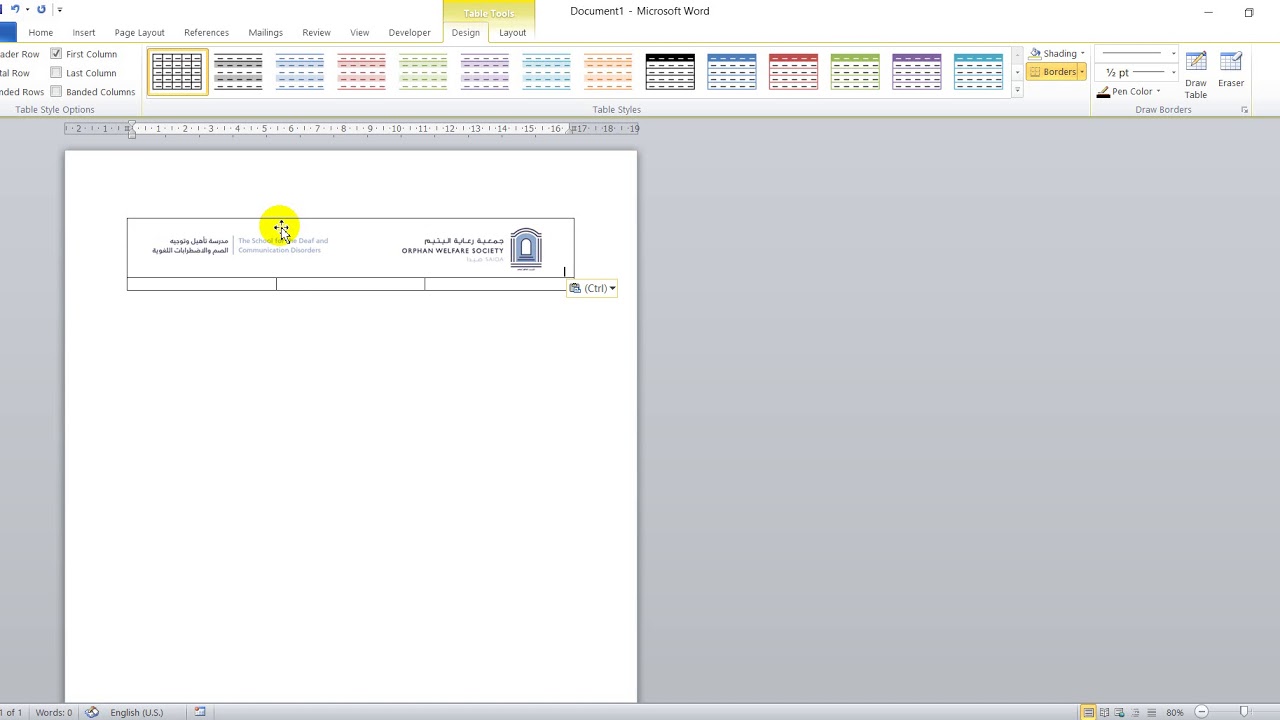
To configure the header for the first page only, start by going to the 'Insert' tab in Microsoft Word, then click on 'Header' and select 'Blank' or any other header style that suits your needs. Check the box that says 'Different First Page' in the Header & Footer Tools. This action will allow you to edit the first page's header independently of the rest of the document. You can then insert your desired text, images, or other elements into this first-page header. Once you've finished, click 'Close Header and Footer' to return to the document body. Your first page will now have a unique header, while the subsequent pages will either have a different header or no header at all, depending on your settings.